Tel: +86-150-1280-2327 Email: granitecomponents@163.com
- All
- Product Name
- Product Keyword
- Product Model
- Product Summary
- Product Description
- Multi Field Search
 EnglishEnglish
Views: 0 Author: Site Editor Publish Time: 2025-08-08 Origin: Site


Many people think 3d printing is easy to use because of cheap machines, helpful online groups, and simple software.
3d printing lets you make quick models and improve designs for both hobby and work.
With tools like a Granite Measuring Platform or a Granite Equipment Base, you can make your 3d prints more exact.
Stay excited as you get your 3d printing equipment, get your 3d model ready, slice it, set up, print, and fix problems. 3d printing helps you use your imagination and turn your ideas into real things.
Begin 3D printing with easy models and simple software. Use low-cost printers on strong granite tables for better results.Pick the right filament for your project. PLA is best for new users. PETG and carbon-fiber filaments make strong parts.Use slicer software to get your 3D models ready. Set up your printer with care. Make sure the bed is level and the heat is right. This helps stop common printing mistakes.Watch the first layers as they print. Fix problems right away for strong, correct prints.Finish your prints by sanding and polishing them. Use granite measuring tools to check if your parts are exact.
When you want to learn about 3d printing, you need the right equipment. Each part of the 3d printer must work together. Here is what you need for most 3d printers:
Controller Board: This part controls the electric parts. You use it to run your 3d printer.
Filament: This is the stuff you melt to make your 3d object. PLA and ABS are popular for 3d printing.
Frame: The frame keeps everything steady. It holds your 3d printer in place.
Stepper Motors: These motors move the print head and bed. They help you get good 3d prints.
Belts: Some 3d printers use belts to move parts. This helps with making each layer.
Threaded Rods: These rods help things move. They are not used much in fancy 3d printers.
End Stops: These parts stop moving parts at the right spot. They keep your 3d printer safe.
Power Supply Unit (PSU): This unit gives power to your 3d printer. It changes AC power to DC power.
Print Bed: The print bed is where your 3d print is made. Heated beds help stop warping.
Print Bed Surface: Different surfaces help your print stick. Pick the best one for your 3d print.
Print Head: The print head melts and puts down the filament. It builds your 3d object in layers.
You can use a Granite Measuring Platform or a Granite Optical Platform for better accuracy. These tools help you check your 3d prints. They are good for rapid prototyping and detailed work.
3d printing starts with a digital model. You use 3d printing technology to turn this model into something real. The 3d printer reads the model and heats the filament. The print head moves and puts down melted filament in thin layers. Each layer sticks to the one below it. This keeps going until your 3d object is done.
Additive manufacturing is the main idea in 3d printing. You build things by adding layers of material. This is not like old ways, where you cut or remove material. Additive manufacturing lets you make tricky shapes and hollow parts. You use it for rapid prototyping, custom parts, and even for planes or medical tools. Subtractive manufacturing is better for making lots of the same thing. Additive manufacturing is best for special or detailed 3d prints.
You can use 3d printing for testing ideas or making finished things. The 3d printing process is quick and flexible. You can change your design and print again fast. This makes 3d printing great for rapid prototyping and creative projects. With the right setup, you can learn the 3d printing process and make your ideas real.
Tip: Start with easy 3d models and simple materials. As you learn more about 3d printing, you can try harder techniques and materials for better results.
When you begin 3d printing, you should learn about the main equipment. Each tool helps you get better and more exact 3d parts. You use these tools for many things, from simple models to big projects in additive manufacturing.
There are many kinds of 3d printers to pick from. Each one is good for different needs. Some printers make very detailed things. Others are fast or make strong parts. Here is a table to help you see the main types of 3d printers:
3D Printer Type | Advantages | Disadvantages |
|---|---|---|
Stereo Lithography Apparatus (SLA) | High precision and smooth finish; great for detailed models | Higher cost; slower printing |
Digital Light Processing (DLP) | Fast speed; good detail | Smaller build size; fewer materials |
Fused Deposition Modeling (FDM) | Affordable; easy to use; good for strong parts | Lower detail; visible layers |
Selective Laser Melting (SLM) | Makes strong metal parts; used in factories | Very expensive; hard to use |
Multi Jet Fusion (MJF) | Fast; strong parts | Fewer materials; high price |
PolyJet | Very smooth and detailed; can use many materials | Expensive; costly materials |
Selective Laser Sintering (SLS) | No need for supports; strong parts | Rough surface; high cost |
Think about what you want to make before picking a printer. If you want to print simple things at home, FDM is a good choice. For small, detailed models, try SLA or DLP. SLM printers are best for strong metal parts in big jobs.
Granite mechanical parts, like a granite measuring platform or granite equipment base, help keep your printer steady. These granite tools give you a flat, stable place for your printer. This helps your 3d prints come out more exact. It is very important for additive manufacturing and rapid prototyping.
Tip: Put your 3d printer on a granite platform. This cuts down on shaking and makes your prints better.
The filament you use changes how your 3d parts look and feel. Each type has its own best uses and strengths. Here is a table to help you pick the right filament for your 3d printing equipment:
Filament Material | Strength | Flexibility | Durability | Notes |
|---|---|---|---|---|
PLA | Strong but brittle | Low | Moderate | Good for simple models and easy 3d printing |
ABS | Medium strength | Medium | Good impact resistance | Needs good airflow; can warp |
PETG | Balanced strength and toughness | Good flexibility | Good chemical resistance | Great for tough 3d parts |
Nylon | High strength and toughness | Medium to flexible | High wear resistance | Needs a heated bed and dry storage |
Polycarbonate (PC) | Very strong and tough | Medium | High heat resistance | Needs careful settings |
Carbon-fiber-reinforced filaments | Very strong and stiff | Low to medium | Very durable | Best for load-bearing 3d parts |
PEEK and ULTEM | Ultra-strong and heat resistant | Low to medium | Excellent chemical stability | Used in aerospace and medical additive manufacturing |
TPU (Flexible filament) | Low to medium strength | High | Good tear resistance | Great for flexible 3d printing applications |
Pick your filament based on your project. PLA is good for simple models and learning. ABS and PETG are better for strong, working parts. Nylon and carbon-fiber filaments are best for tough, moving parts. TPU is great if you need flexible 3d parts. For special jobs, like planes or medical tools, PEEK and ULTEM are top picks.
How you print also changes how strong your 3d parts are. The way you set up your print, like the direction and pattern inside, can make your prints last longer. Doing extra steps after printing, like annealing, can help too.
Note: Always keep your 3d printing materials dry. Wet filament can ruin your prints and make them weak.
You need good software to design and get your 3d models ready. 3d printing equipment uses two main kinds of software: modeling tools and slicers. Modeling tools help you make or change 3d designs. Slicer software turns your 3d model into instructions for your printer.
Here is a table of popular 3d printing software tools:
Software | Price | Intended Users | Solid Modeling | Distinguishing Features |
|---|---|---|---|---|
Wings3D | Free (open-source) | Beginners | No | Easy to use, many mesh tools, supports many file types |
3D Slash | Free web version; Premium $24/yr; Commercial $240/yr | Beginners and hobbyists | Yes | Block-style modeling, VR support, fast from idea to print |
SketchUp | Free web version; Pro $299/yr | Beginners to advanced | No | Simple interface, big library, great for buildings and furniture |
Fusion 360 | Free for personal/startups; $595/yr commercial | Amateurs to professionals | Yes | Cloud sharing, history tracking, many modeling types, regular updates |
MoI 3D | $295 | Amateurs to advanced | Yes | Smooth mesh creation, works well with pen tablets |
If you are new, try free software like Wings3D or 3D Slash. SketchUp is good for making buildings or furniture. Fusion 360 is powerful for hard 3d parts and additive manufacturing. MoI 3D is great if you want smooth models and like using a pen tablet.
Slicer software, like Cura or PrusaSlicer, takes your 3d model and makes the code your printer needs. You can change settings like layer height, speed, and supports. This helps you get the best results from your 3d printing equipment.
Tip: Try out different software to see what you like best. Many programs have free trials or basic versions.
Granite optical platforms and granite measuring tools help you check your 3d prints for accuracy. These tools are important for making sure your 3d printing equipment gives you the best results every time.
You can start your 3d printing journey by finding ready-made 3d models online. Many websites offer free or paid 3d designs for all kinds of parts. These models help you learn about 3d printing and save time. The table below shows some of the most popular online repositories for 3d models:
Repository | Focus on 3D Printing | Pricing Model | Target Audience | Special Features/Notes |
|---|---|---|---|---|
Cults 3D | Yes | Free and paid | Hobbyists and designers | Checks printability; many categories |
Pinshape | Yes | Free and paid | Hobbyists and designers | Large community; easy to browse |
Thingiverse | Yes | Free | Makers | No account needed to download |
Printables | Yes | Free | Hobbyists and designers | Good filtering system; thousands of printable models |
Yeggi | Yes (search engine) | Free | General users | Searches multiple databases for 3d printable models |
When you choose a 3d model, think about the purpose of your 3d printing project. Make sure the model fits your printer’s size and can be printed with your materials. Look for models with strong parts and simple shapes. Avoid models with thin walls or large overhangs, as these can cause problems during 3d printing. Always check if the file format is compatible with your 3d printer, such as STL or OBJ.
Tip: Use a granite measuring platform to check the accuracy of your printed parts. This helps you get better results in every 3d printing project.
If you want to create custom parts, you can try 3d design software. Many beginners start with simple 3d design tools. You can use programs like Tinkercad or Fusion 360 to make your own 3d models. When you design for 3d printing, follow these steps to avoid common issues:
Plan your 3d design and think about how the parts will be used.
Keep overhangs below 45 degrees to reduce the need for supports.
Make sure walls are at least 0.8 mm thick for strong parts.
Add rounded corners to prevent warping of your 3d prints.
Match the details of your 3d design to your printer’s abilities.
Check your model for errors and fix any non-manifold geometry.
Export your 3d design in a format your printer supports.
Test your 3d design with calibration prints before making final parts.
Many beginners face challenges in 3d design, such as calibration issues, warping, or failed prints. You can solve these by leveling your print bed, using the right materials, and adjusting your print settings. If you need high precision, use a granite optical platform or a granite equipment base for your 3d printer. These tools help you get stable and accurate 3d printing results.
Note: Practice makes perfect in 3d design. Start with simple 3d models and learn from each print. Over time, you will master 3d printing and create better parts for any project.
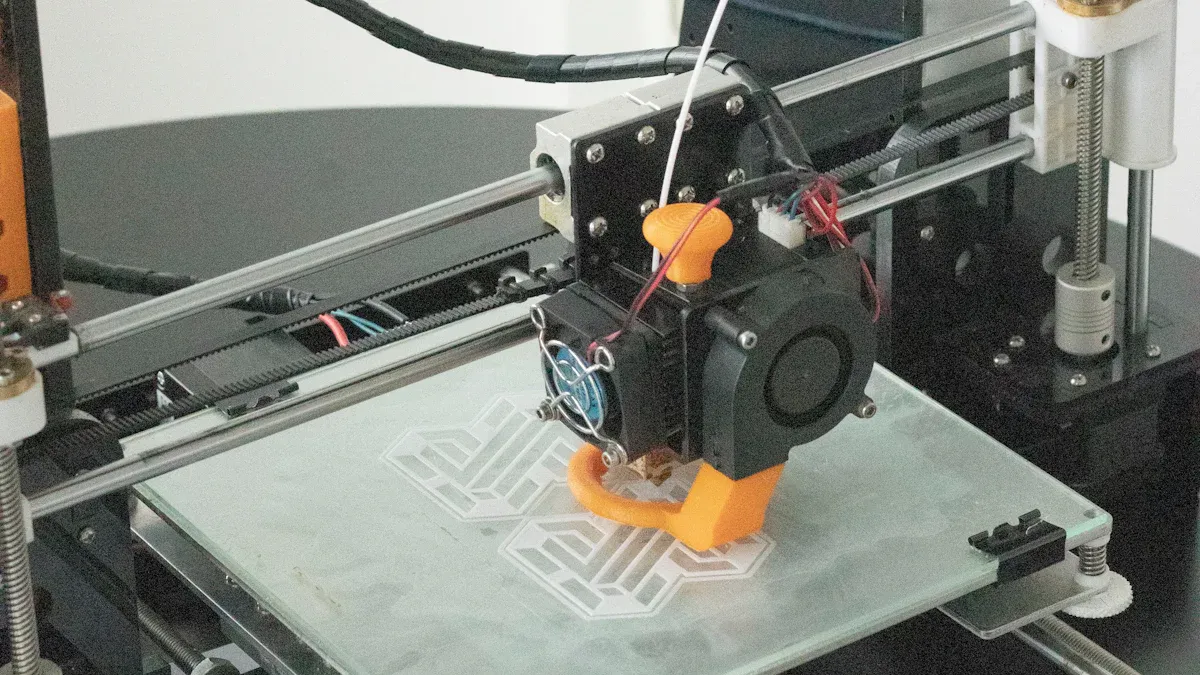
You need slicer software before you can start printing. This tool gets your 3d model ready for your printer. Slicer software does a few main things:
It changes your 3d model into G-code for the printer.
It cuts your model into thin, flat layers.
You can look at, resize, or turn your 3d parts before printing.
You can change settings like supports or use more than one material.
Some slicers let you watch and control your printer while it works.
You can pick slicers like PrusaSlicer, OrcaSlicer, or Cura. Each slicer has different tools for your needs. The table below shows how they compare:
Aspect | PrusaSlicer | OrcaSlicer | Cura |
|---|---|---|---|
Print Quality | Organic supports, text embossing | Advanced control, overhang detection | Combing mode, plugins |
User Experience | Easy modes, Printables integration | Clean interface, remote control | Flexible, strong community |
Printer Compatibility | Many brands, pre-configured | Mainly BambuLab | Broad compatibility |
Performance | Fast G-code | Slower, detailed | Slower with complex models |
Community & Support | Large, frequent updates | Smaller, unique features | Large, active |
Learning Curve | Beginner to expert | Steep, advanced | Complex for beginners |
Tip: Try out a few slicers to see which one you like best.
Getting your 3d printer ready is very important. A good setup helps you make strong, accurate parts. You need to check how the material moves and how the printer puts it down. You also need to set the speed, temperature, and layer height. Many new printers clean the nozzle and check flow by themselves. These features help you avoid mistakes and bad prints.
Set your print speed to match your material. PLA can print faster. ABS needs to go slower and needs heat. If you use a granite equipment base or granite measuring platform, your printer will not shake. This makes your prints better and helps you get good results.
Note: A good printer setup helps you print better and makes things easier.
Bed leveling is a big part of 3d printing. It keeps the nozzle the right distance from the bed everywhere. The paper test is the most common way. Put a piece of paper under the nozzle and move it until you feel a little drag. This helps your 3d parts stick to the bed.
You can also set the Z-offset and clean the bed. These steps help the filament stick and stop problems like warping. Some printers use automatic tools to level the bed. If your first layer looks bad or does not stick, check for loose bolts or a crooked frame. Use a granite measuring tool to make sure the bed is flat.
Common Signs of Improper Bed Leveling | Correction Methods |
|---|---|
Uneven first layers | Repeat Z calibration, print test layers |
Bed areas too high or low | Adjust lead screws, check rod alignment |
Loose bolts or belts | Tighten bolts, lubricate rods |
Persistent issues | Use firmware correction, check bed flatness |
Tip: Level your bed every time before you print. This helps your 3d parts come out right.
You have your 3d model and equipment ready. Now you can start the 3d printing process. Follow these steps to get good results:
Check your 3d model and slicing settings again. Make sure the file is right and the printer is set up.
Heat the printer to the right temperature for your filament. Wait until the bed and nozzle are hot enough.
Put the filament into the printer. Watch to see if it feeds well and does not jam.
Clean the print bed. Remove dust or old material so the first layer sticks.
Start the print from your slicer or the printer’s panel. Watch the first layer closely. Good sticking is important for the whole print.
If your printer has remote monitoring, use it. You can watch the print, check the temperature, and see how much filament you use. This helps you find problems early and stop the print if needed.
Watch the print for the first few layers. If you see warping or bad sticking, pause and fix it right away.
Let the print finish. Do not take off the 3d printed object until the bed cools.
Tip: Put your printer on a granite measuring platform or granite equipment base. This cuts down shaking and keeps your prints accurate.
Advanced 3d printers can print bigger things and let you watch from far away. This makes it easier to handle many prints and get good results every time.
When the print is done, you need to finish your 3d printed object. Post-processing makes your 3d parts look better and stronger. Here are some common steps:
Remove supports: Take off any extra pieces that held your 3d part in place.
Sanding: Use sandpaper to smooth rough spots and remove lines. Start with rough sandpaper, then use finer ones for a smooth finish.
Polishing: Rub the 3d part with a soft cloth or tool to make it shiny.
Tumbling: Put small 3d parts in a tumbler with rough pieces. This smooths many parts at once.
Abrasive blasting: Use a sandblaster to clean and smooth the outside of your 3d part.
Vapor smoothing: Use a chemical vapor, like acetone for ABS. This melts the outside and makes it shiny.
Local melting: Use a heat gun to fix small marks or scratches on your 3d part.
Annealing: Heat the 3d part in an oven to make it stronger and stop warping.
Joining: Glue or weld more than one 3d part together to make bigger things.
Priming, painting, and coating: Add primer to fill holes, paint for color, and coat for protection. This makes your 3d part look better and last longer.
Note: Use granite measuring tools or a granite optical platform to check if your finished 3d parts are the right size. This helps you make sure your 3d prints are what you need.
You might have problems during the 3d printing process. Knowing how to fix them helps you get better 3d prints. Here is a table of common 3d printing problems and how to solve them:
Issue | Symptoms/Description | Troubleshooting Steps |
|---|---|---|
Under Extrusion | Thin lines, gaps, weak 3d parts | Adjust feed tension, clear nozzle by heating and feeding filament. |
Over Extrusion | Gooey nozzle, merged lines, excess material | Lower nozzle temperature, check filament diameter, adjust flow, replace worn nozzle. |
Holes or Gaps | Openings in outer shell, weak 3d printed object | Increase infill, add top layers, adjust feed tension, clear nozzle. |
Stringing/Oozing | Fine strings on 3d parts, messy surface | Raise travel speed, lower print temperature, adjust retraction settings. |
Overheating | Bubbles, burns, warped 3d printed object | Increase cooling fan, lower print temperature, slow print speed, add layer timer. |
Weak Infill | Fragile or uneven inside of 3d parts | Clear nozzle, check filament feed, slow print speed. |
Gaps Between Infill and Outline | Gaps at corners, weak connection between 3d parts | Increase overlap, slow infill speed. |
Curling/Peeling from Print Bed | Edges lift, 3d printed object detaches | Use heated bed, apply glue or tape, add brim or raft, level bed. |
Surface Imperfections | Drips, scars, rough 3d printed object | Lower nozzle temperature, check filament diameter, increase travel speed, adjust Z-hop. |
Side Layer Surface Issues | One side rough, others smooth | Raise flow rate, adjust filament or nozzle diameter, increase restart distance after retraction. |
Clumping on Top Surfaces | Lumps or blobs on 3d printed object | Raise print temperature, slow surface speed, increase infill, add surface layers. |
Overly Matte/Textured Finish | Dull, rough surface on 3d parts | Adjust retraction, check for nozzle clogs, change temperature. |
Outer Shell Not Sticking | Outer shell separates from inner layers | Slow outer shell speed, raise flow rate, check for nozzle clogs. |
Filament Feed Failure | No filament, print stops mid-process | Adjust feeder tension, clear nozzle, clean or replace hobbed gear. |
You can stop many 3d printing problems by following these tips:
Always level the print bed before you start printing.
Use a heated bed and glue to stop warping.
Keep filament dry in airtight boxes to stop moisture.
Tighten belts and check for loose parts on your printer.
Put your printer on a steady surface, like a granite equipment base, to stop shaking.
Run test prints to fine-tune your settings.
Use good filament and tools for better 3d prints.
Tip: Take care of your printer and set it up well to avoid most problems. If you see a problem, stop and fix it before you keep going.
By following these steps, you can get better at 3d printing and make strong, accurate 3d parts. You will learn more with each print and get better over time.
You can master 3d printing by following a few clear steps. Place your 3d printer on a granite measuring platform for stability. Start with simple 3d models and use beginner-friendly software. Prepare your 3d design, slice it, and set up your 3d printer with care. Watch the first layers of your 3d print closely. Clean and finish your 3d parts after printing. Try advanced 3d printing techniques like multi-material 3d printing or use a granite optical platform for precision. 3d printing takes patience and practice. Each 3d print helps you learn more about 3d design and 3d printing. Over time, you will see your 3d printing skills grow. 3d printing offers endless ways to create, so keep experimenting and enjoy the process.
You can start with a basic 3d printer and simple 3d models. Use free slicer software and choose PLA filament. Place your printer on a granite measuring platform for better results. This setup helps you learn 3d printing quickly and safely.
You should use a granite equipment base to keep your 3d printer stable. Always level the print bed before each print. Check your 3d model for errors and use the right slicer settings. These steps improve your 3d printing accuracy.
PETG and carbon-fiber filaments work well for strong 3d parts. Nylon is also a good choice for tough 3d prints. If you need high precision, use a granite measuring platform to check your finished 3d objects.
A clean print bed helps your 3d print stick better. Level the bed and set the right temperature. Use a granite equipment base for less vibration. Try glue or tape if your 3d printing project still has trouble sticking.
Yes, you can use 3d printing to make custom tools or replacement parts. Design your own 3d model or download one online. Use a granite measuring platform to check the size and fit of your 3d printed part.


